App icons
IBM app icons are visual symbols that represent products or services. They identify apps at a glance for users while serving as a unique expression of our brand. Every IBM app icon is rights restricted and should not be altered. An app icon should never be used in reference to any topic other than its name.
Resources


Overview
App icons visually communicate the core idea of a product or service through either objective or abstract form. Expressive and distinct, each icon serves to identify apps at a glance, while collectively appearing to be part of a whole. All app icons are constructed on the same 32px grid and share many stylistic properties of UI icons. Several different forms of app icons exist to serve the needs of different products, services and the contexts in which they appear.

Stroke app icons
Fill app icons

IBM Plex app icons
Stroke app icons
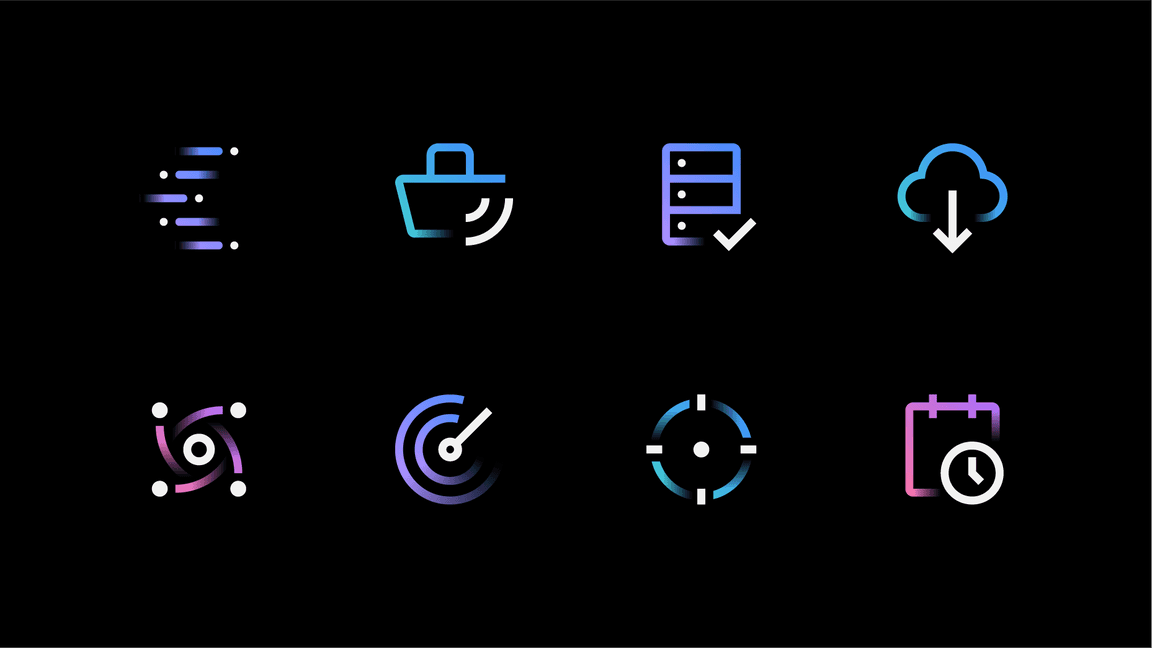
Stroke app icons use light strokes and color gradients to distinguish themselves from product UI icons. They’re most effective in contexts where app icons, UI icons and typography appear together, providing clarity without visual conflict.
Style
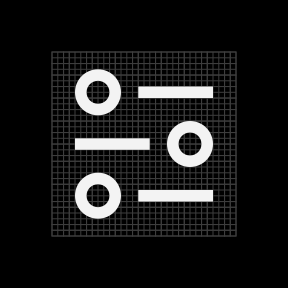
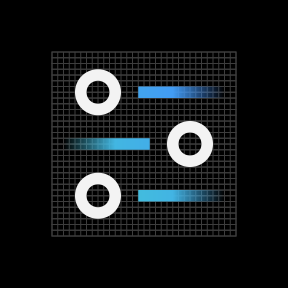
Stroke app icons are largely based on the styling of UI icons, following all the same production guidelines other than color. When creating a stroke app icon, refer to the UI icon guidance as a starting point.
UI icon
Stroke app icon
Elements
All stroke app icons consist of three elements: a color gradient, a gradient stroke and a solid stroke. Each of these elements must appear at least once in the icon, and separate elements don’t touch each other.
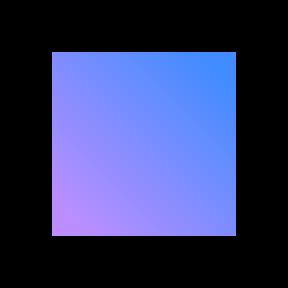
Color gradient

Gradient stroke

Solid stroke

Gradient strokes and solid strokes shouldn’t touch.

Stroke app icons must include both solid and gradient strokes.
Color gradient
The color gradient provides color to the gradient stroke of the icon. This layer remains stationary on the icon grid at 45° and is masked by the gradient stroke for consistent color across each icon.
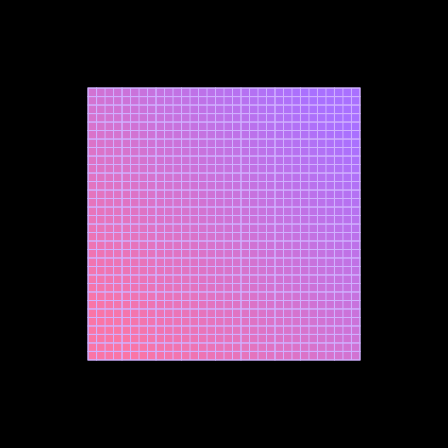
The color gradient layer remains stationary on the icon grid and is masked by the gradient stroke.
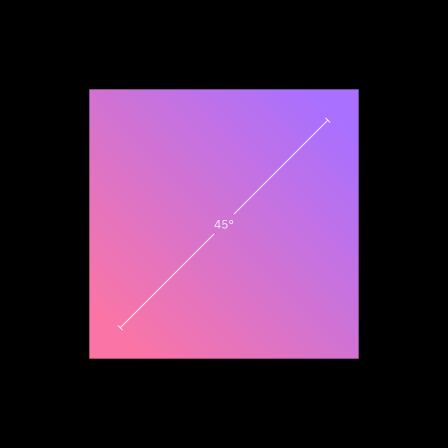
The color gradient is always at 45°.
Here are the 4 standard icon colors. Note that the colors are adjusted for both light and dark backgrounds to appear best in either context. Additional color gradients can be created from any acceptable 2-color family. Refer to the table below when creating new color gradients.
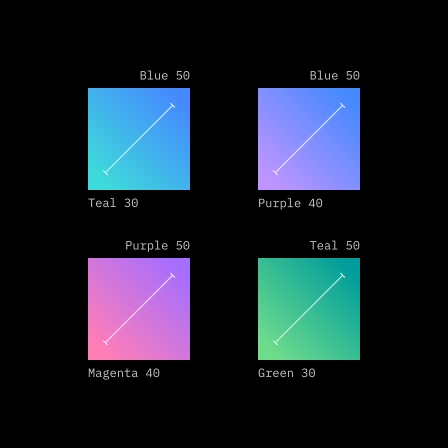
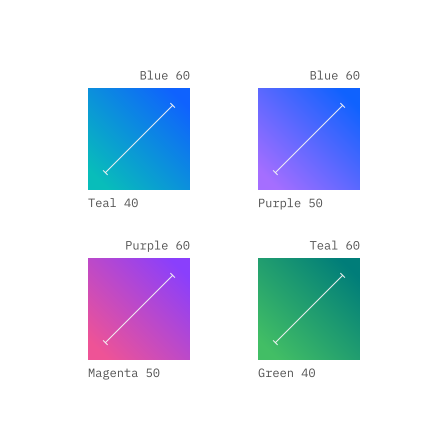
| Icon theme | Color value 1 | Color value 2 |
|---|---|---|
| Dark | 50 | 40, 30 |
| Light | 60 | 50, 40 |

Don’t alter the angle or scale of the color gradient.

Don’t use unapproved color gradients.
Gradient stroke
The gradient stroke portion of the icon features an alpha gradient, which is a gradient that blends between 100% and 0% opacity. This element serves as a mask for the color gradient.


Don’t create a gradient stroke that doesn’t include an alpha gradient.

Don’t make the alpha gradient too harsh.

Don’t use radial gradients.

Don’t use a gradient horizontally along the stroke to create faded edges.
Solid stroke
The solid stroke features no gradients of any kind, and it’s used as an accent or to emphasize a part of the icon. Be purposeful about where you use the solid stroke in your icon; don’t add emphasis to insignificant parts of the icon. The color of the solid stroke can be either Gray 10 for dark backgrounds or Blue 90 for light backgrounds. These colors work great for either context and with any approved color gradient.
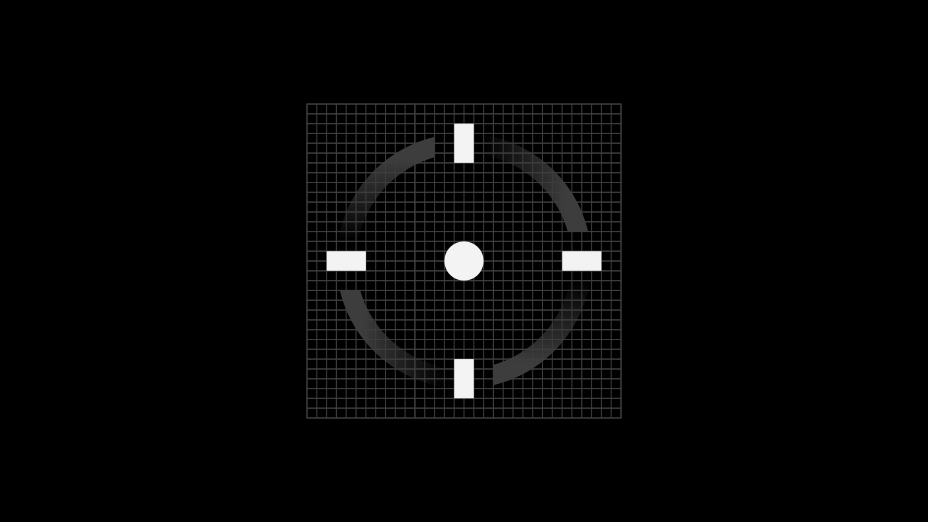

Use a Gray 10 solid stroke on dark backgrounds.

Use a Blue 90 solid stroke on light backgrounds.

Don’t add emphasis on insignificant parts of the icon.

Don’t use an alpha gradient on the solid stroke layer.

Don’t use dark theme colors on light theme and vice versa.

Don’t use other solid stroke colors.
Stroke app icon masking
Stroke app icons feature both color and alpha channel gradients. This technique can be achieved in Adobe Illustrator using masking. Follow these guidelines to create proper gradient masks.
- Draw a 32px x 32px square and apply a color gradient. Set the angle to 45° and place the gradient slider locations at 10% and 90%.
- Place the artwork that’s to be in color above the color square. Make sure the color is set to
#FFFFFFWhite. - Place black gradients on the parts of the icon to be masked. Set both gradient sliders to
#000000Black, and set one slider to 0% opacity. Any part of the artwork in black will be transparent after masking. - Open the transparency panel
Window→#000000. - Group all gradients with the white icon
Window→Group. - Select both the new group and the color square, then click
Make Maskin the transparency panel.
Fill app icons
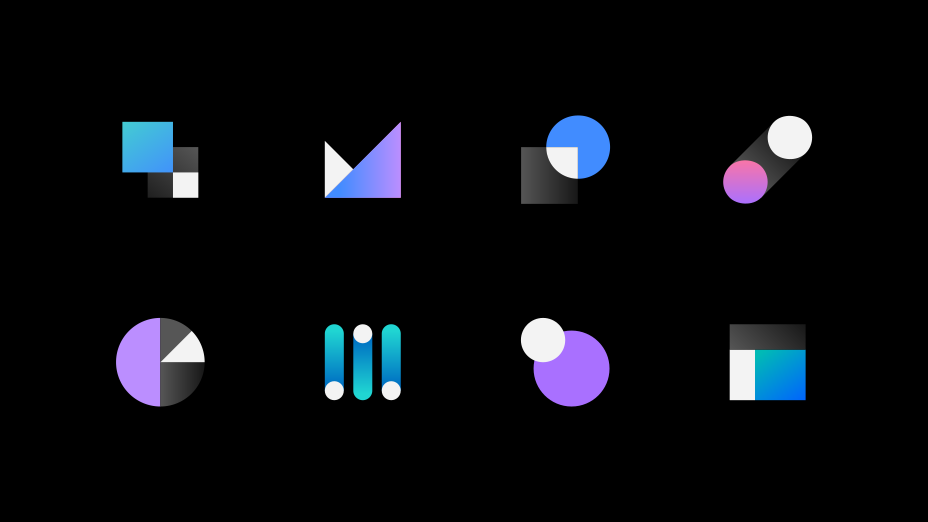
As an alternative to stroke app icons, fill app icons communicate the core idea of the app with more simplicity and abstraction. These icons should focus on the bigger concepts of the product or service, such as scale, transaction, integration and so on. Functionally, fill app icons work best in situations where you need to call attention to the app with more visual weight or a larger color field, as opposed to the light, linear form of stroke app icons.
Style
Fill icons are created by combining, intersecting and subdividing two core shapes: the square and the circle. These shapes can be scaled to fit within the grid to allow for endless possibilities.
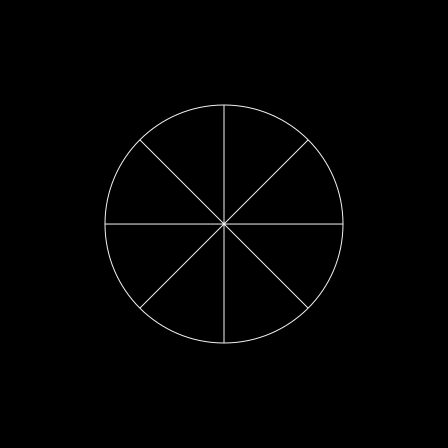
Core shape (circle) with subdivisions
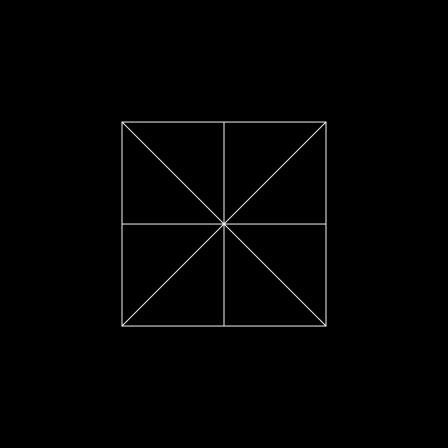
Core shape (square) with subdivisions
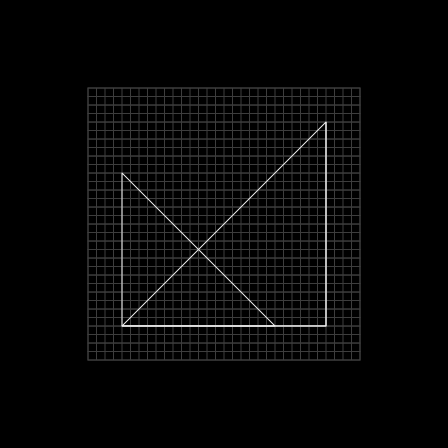
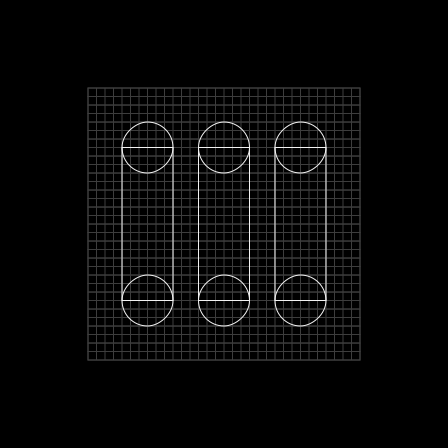

Avoid making icons too complex.

Avoid making icons too literal.

Don’t use organic shapes.
Elements
Fill icons consist of up to 3 elements: a primary gradient, a secondary color and a tertiary gradient. All fill app icons must have at least one primary gradient, and at least one secondary color or tertiary gradient or both. Any element can exist in more than one shape, that is, 3 separate shapes with a primary gradient.
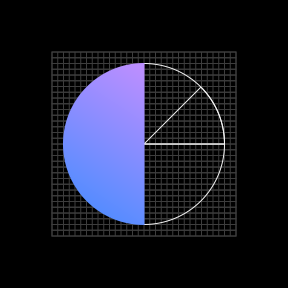
Primary gradient
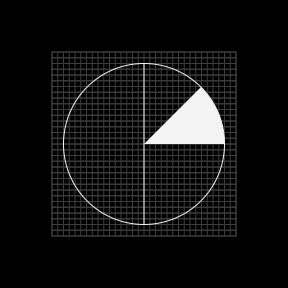
Secondary color
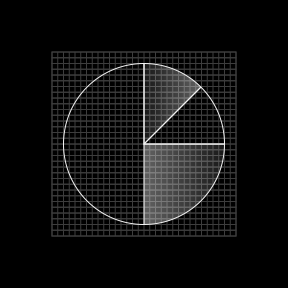
Tertiary gradient

Fill icons must include at least 1 shape with primary gradient.

Fill icons must include at least 1 secondary color or tertiary gradient or both.
Primary gradient
The primary gradient is the primary element of the icon consisting of a blend between any acceptable 2-color family from the color palette. Color fields can be larger in fill icons than stroke icons, so a wider range of color gradients can work well on both light and dark backgrounds. Refer to the color guidelines when choosing the right color gradient for your app icon.
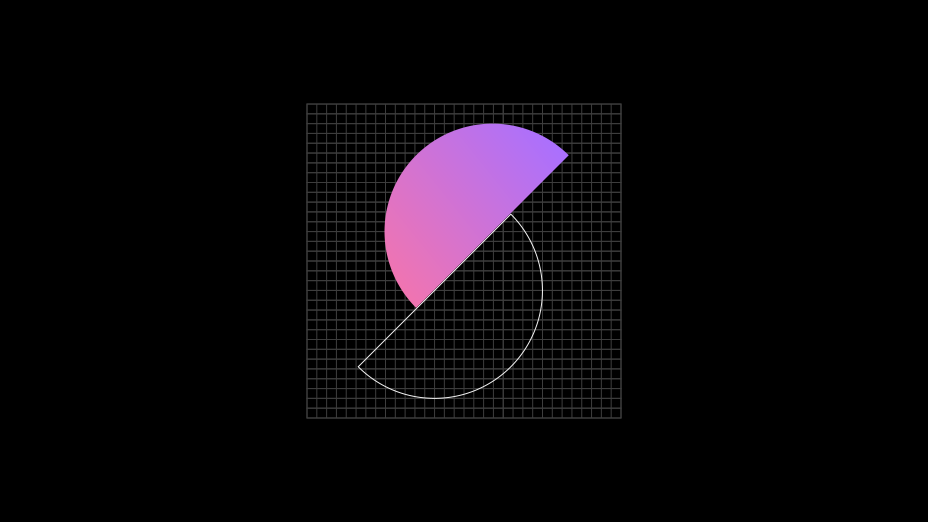

Don’t use more than a single 2-color family for the primary gradient.
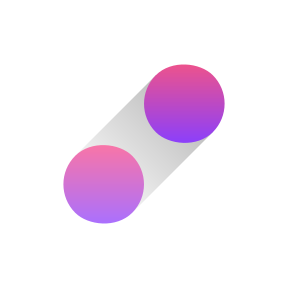
Don’t use different color values for the primary gradient.

Don’t create gradients with more than 2 colors.
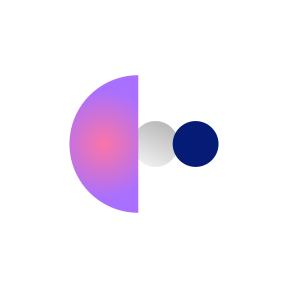
Don’t use radial gradients.
Secondary color
Secondary color can be used as an accent or to place emphasis on part of the icon. Use either Gray 10 for dark backgrounds or Blue 90 for light backgrounds.
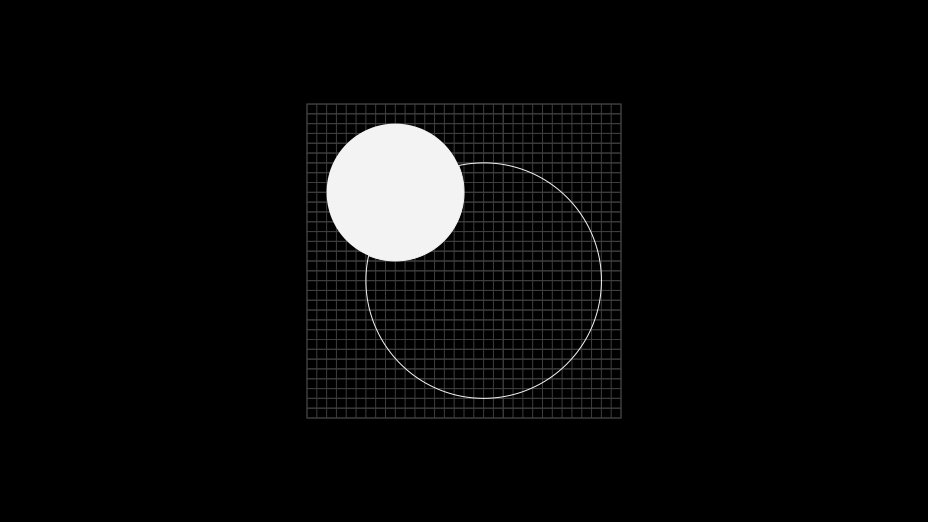
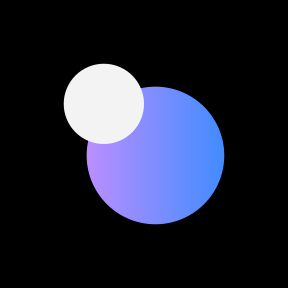
Gray 10 secondary color on dark background

Blue 90 secondary color on light background

Don’t use dark-theme colors on a light-theme color and vice versa.

Don’t use other colors for the secondary color.
Tertiary gradient
The tertiary gradient is a very light and subtle supporting element designed to fall somewhat to the background. It consists of an opacity gradient using either Gray 10 for dark backgrounds or Gray 100 for light backgrounds.
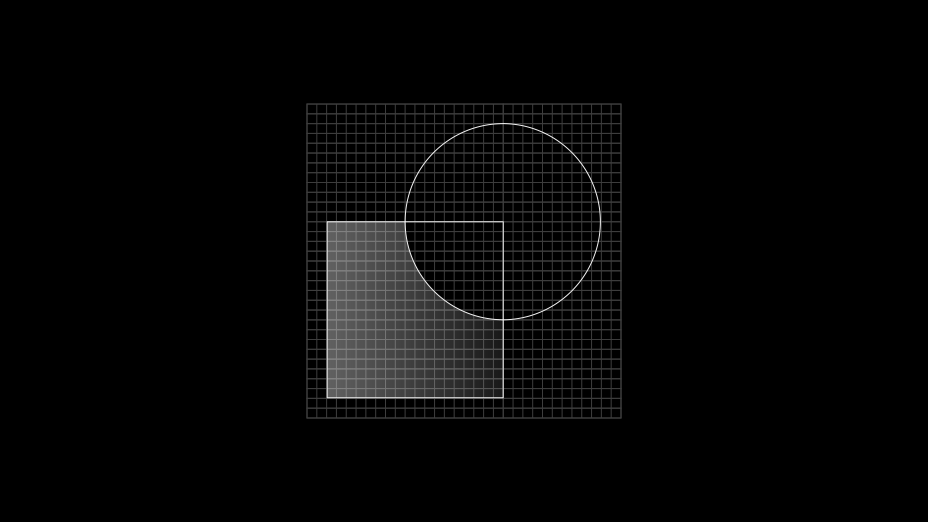

Tertiary gradient for light backgrounds

Tertiary gradient for dark backgrounds
IBM Plex® app icons
IBM Plex® can also be sized for use as product or service identifiers. Use the icon grid as a guide to ensure that type appears clear and proportional alongside other iconography.


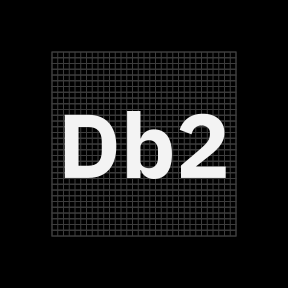
Style
For app icons, bold weights of IBM Plex® Sans work best. You may choose to use IBM Plex® Mono or italics IBM Plex fonts when it makes sense for your product or service.
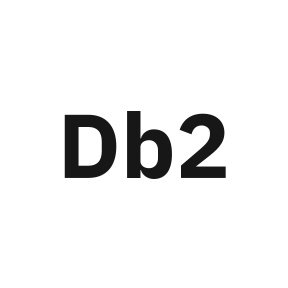
Use bold weights of IBM Plex and default to IBM Plex Sans.
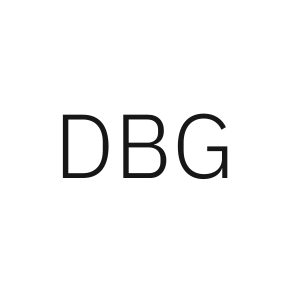
Don’t use lighter weights.

You can use Plex Mono and italics Plex fonts when it makes sense to do so.

Avoid use of IBM Plex® Serif.
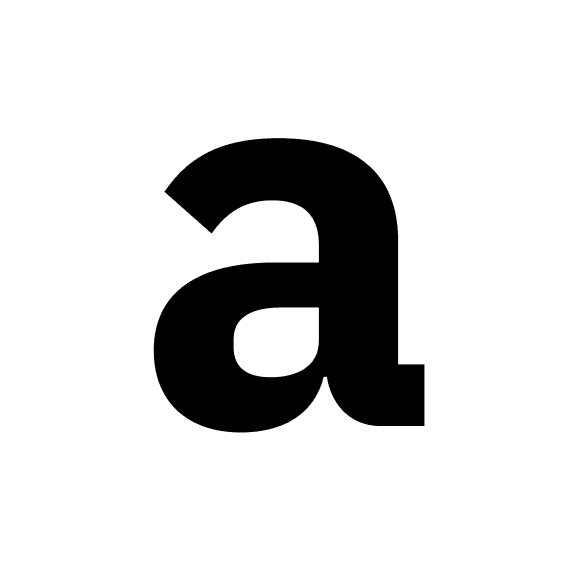
Use solid type.
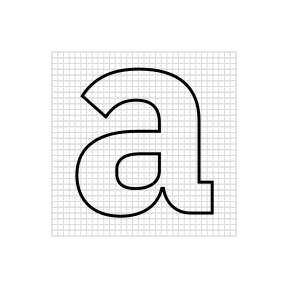
Don’t outline type.
Typesetting
When setting type on the icon grid, use smaller type sizes as character count increases to fit the type comfortably. Don’t alter other type specs, such as tracking, kerning, and vertical or horizontal scaling.
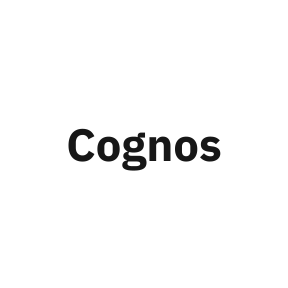
Don’t use more than 3 to 4 characters.
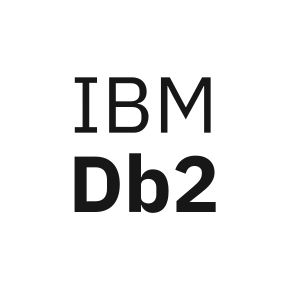
Don’t use more than 1 line of text.

Don’t stretch the type.

Don’t alter the tracking.
Alignment
Always keep type center aligned within the icon grid, and adjust for optical alignment when needed. Keep baselines aligned to a grid division and respect icon padding guidelines.
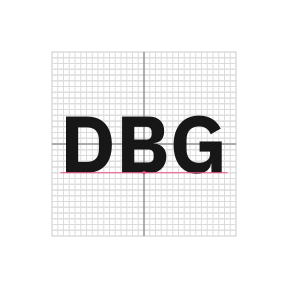
Center typography while aligning the baseline to the icon grid.
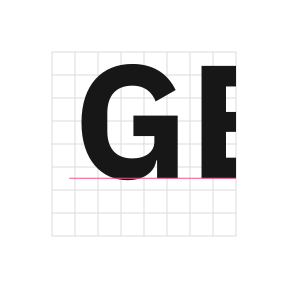
Don’t place the baseline off-grid.
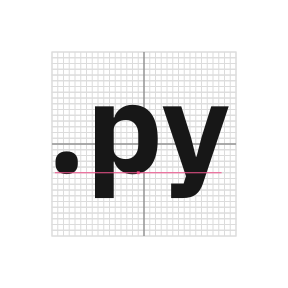
You can adjust horizontal alignment when optical centering is needed.
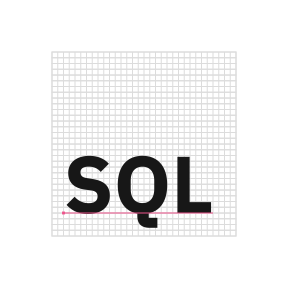
Don’t left align, right align, top align or bottom align the type.

Place type completely within the icon grid.
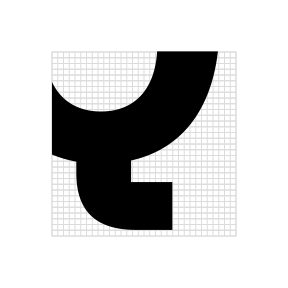
Don’t crop the type.
Color
You can use color and gradients with typography. Always choose a color within the palette and follow the color guidelines for gradients.

You can use 1 color value from the color palette.

Don’t use multiple colors.

You can use gradients across the entire icon.

Don’t place gradients on separate elements of the type.